What the tool does, and what it does not cover
The Leave Optimizer covers one year only: 2027. Its holiday data is built into the page, so the whole calculation runs in your browser. There is no account, nothing is fetched, and nothing is uploaded. You change an input and the plan updates on the same page.
The tool covers 10 countries and 118 national public holidays in total. The data is embedded in the tool itself, and the tool notes that the holidays were checked against official calendars on October 26, 2026, with Nager.Date as the source. If your country is not in the list, the tool cannot plan for it yet.
Mainland China is not in version 1 of the tool. The tool will add mainland China once the 2027 public holiday schedule is officially announced. Do not expect the tool to cover mainland China holidays until that update arrives.
Two country groups need a careful reading. The United Kingdom entry means England and Wales only, and the Canada entry means the federal list only. Germany and France have no substitute-day rule in the tool: a holiday that falls on a weekend is simply lost, exactly as the tool models it. Australia is covered by a national list of 6 days, and one well-known exception sits outside that list, explained in the company-days section below.
Step 1: Pick your country
The country dropdown is the first control, and it defaults to the United States. Changing the country changes the whole holiday calendar underneath the plan, so it is worth setting this before anything else. A plan built for Japan will not transfer to Germany, because the public holidays fall on different dates and the gaps between them are different.
| Country | Group used in the tool | Public holidays in 2027 |
|---|---|---|
| United States | Federal list | 11 |
| United Kingdom | England and Wales | 8 |
| Germany | National list | 9 |
| France | National list | 11 |
| Japan | National list | 17 |
| South Korea | National list | 18 |
| Australia | National list | 6 |
| Canada | Federal list | 10 |
| Singapore | National list | 11 |
| Hong Kong | National list | 17 |
The counts add up to 118 days. Japan, South Korea, and Hong Kong have the most holidays in the tool, which is one reason their calendars offer more bridge opportunities. Australia has the fewest, at 6 national days, so an Australian plan leans more heavily on company days and on the long Christmas window. The counts above are the counts inside the tool, not a claim about any other list.
Step 2: Enter your leave days and your weekend
The leave-days box defaults to 10 days and accepts values from 1 to 30. Enter the number of annual leave days you are willing to spend on bridge days, not your total annual allowance. The tool treats this number as a budget: a candidate break only counts if the leave days it needs fit inside the budget, except in the All opportunities view, which is explained below.
Next to it sits the weekend choice, with two options. Saturday-Sunday is the default, and Friday-Saturday is the alternative. This choice matters more than it looks, because the weekend defines which days are already non-working before any leave is spent. Changing the weekend reshapes every gap in the year, and in one unusual case it even changes which long breaks are possible at all.

A small honesty note about the budget: the tool will sometimes use fewer days than you entered. If the best break needs 9 days and you entered 10, the result will say 9 days of leave, not 10. The unused day stays yours. The result line always reports the leave actually used, so read that number rather than assuming your full budget was spent.
Step 3: Choose a strategy
The strategy buttons decide what kind of answer you get from the same inputs. There are three, and they answer three different questions. Longest single break is the default. It asks: what is the single longest unbroken stretch I can get? Spread evenly asks: how do I spread my leave across the year? All opportunities asks: what are all the bridge chances, ranked, without choosing for me?
| Strategy | What it optimizes | What the output looks like |
|---|---|---|
| Longest single break | The longest single unbroken stretch within your budget | One break only, or nothing if no break fits |
| Spread evenly | The best set of non-overlapping breaks across the year | Several breaks, with a combined total |
| All opportunities | Nothing: it ranks every candidate instead of choosing | A full table, sorted by ratio, not filtered by your budget |
The distinction between the first two strategies is the one most people miss. Longest single break returns one stretch. Spread evenly returns a set of stretches, and its headline number is the sum of all of them. A headline of 19 days off under Spread evenly does not mean 19 days in a row. It means several shorter breaks that add up to 19 days. The companion worked example in this cluster, You can get 12 days off if you plan your leave this way, shows the same Japan input under all three strategies side by side, so you can see the difference on real numbers.
The ratio shown next to every result is the same in all three views: consecutive days off divided by leave days used, shown to one decimal place. A ratio of 3.0× means every leave day bought three days off in total, counting the weekends and public holidays that came free with it. A higher ratio is more efficient, but it is not always the better holiday: a single long break and four short ones can have very different value even when the arithmetic favors one of them.
Step 4: Add company days on the calendar
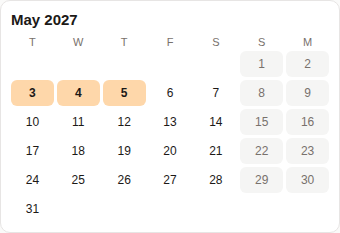
Below the inputs sits a calendar for all 12 months of 2027, with weeks starting on Monday. Clicking any working day toggles it into an extra day off, a company day. Click again to undo it. Public holidays and weekend days cannot be selected, because they are already non-working days; there is nothing to add there. A Clear company days button removes every company day at once.
Company days are the tool for everything the national list does not contain: an office closure day, a team shutdown between Christmas and New Year, or a regional holiday that is not in the national set. Add them before reading the result, because each added day can join two neighboring non-working stretches into one longer break, or turn a gap that was too wide into a bridge that fits your budget.
The Australian Anzac Day case is the example the tool itself flags. Anzac Day falls on Sunday, April 25, 2027, and in most states Monday, April 26 is observed as a substitute holiday, except in Victoria, South Australia, and Tasmania. That April 26 substitute day is not in the national list inside the tool, so if it applies to you, add April 26 as a company day yourself. Without it, the tool will treat April 26 as an ordinary working day.
- Weekend days are shown in grey.
- Public holidays are shown in orange.
- Company days you add are shown in blue.
- Recommended leave days are shown in green.
- Days inside the recommended plan carry an orange outline.
Step 5: Read the result panel
The result panel opens with an efficiency line in a fixed format: a number of days of leave, an arrow, a number of days off, and a ratio. Under Longest single break, the days-off number is one unbroken stretch. Under Spread evenly, it is the total across several stretches. Under All opportunities there is no single efficiency line to read as a plan, because the view is a table, not a recommendation.
Below the efficiency line, each break is listed with its start and end dates, its total days off, and its leave days. The leave dates themselves appear as green chips, so you can copy them into a leave request without re-reading the calendar. If no bridge fits inside your budget, the tool says so plainly: No bridge fits within your leave budget — try more leave days or add company days. That message is useful information, not an error: it means the gaps in your country that year are wider than your budget, and the fix is either more leave or a company day that narrows a gap.
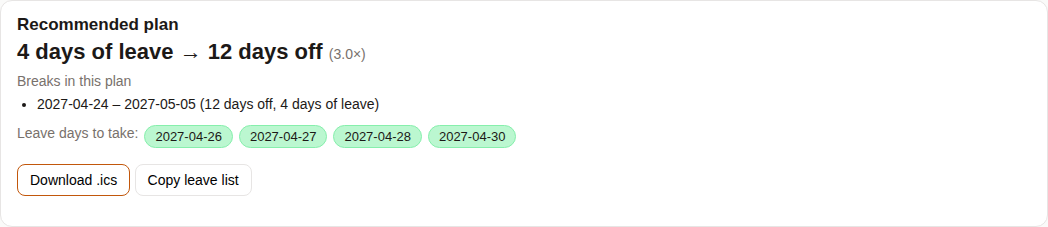
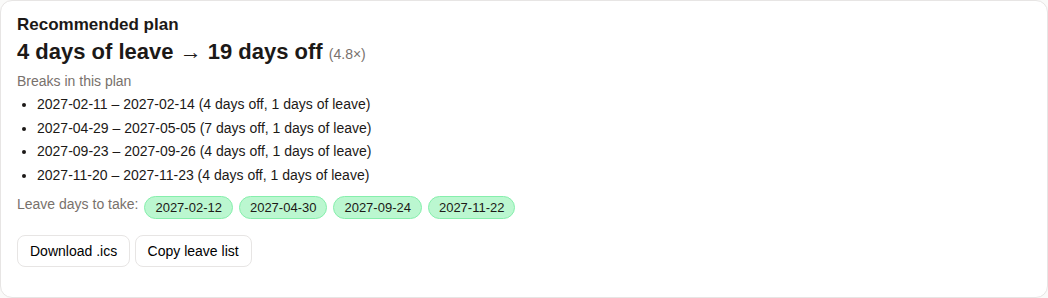
Compare those two screenshots before choosing. The first gives you one 12-day break. The second gives you more days in total, but the longest single stretch inside it is only 7 days. Neither is wrong. They optimize different things, and the right one depends on whether you want one real holiday or several short ones.
Step 6: Export the plan as a calendar file or a leave list
Two buttons sit under the result: Download .ics and Copy leave list. The calendar file is named leave-2027.ics and follows the standard VCALENDAR 2.0 format. It contains one all-day event for each leave day, with the leave date as the start date and the next day as the end date. In English the event title is Day off. Each event carries an identifier built from its date, so a calendar app can tell the days apart.
Two export details are easy to get wrong. First, under All opportunities the calendar file contains the union of the leave days from every candidate in the table, because that view has no single chosen plan; it is not filtered by your leave budget, so do not import it expecting a single ready-made plan. Second, under the other two strategies, if the plan has no leave days at all, no file is downloaded. Both behaviors follow from what each view actually is: a chosen plan exports its own leave days, and a ranked table exports everything in the table.
The calendar file itself and its contents were verified in testing, but how Google Calendar, Outlook, or Apple Calendar display the imported events was not verified in this round. Treat the file as a standard calendar file, and check the imported days in your own calendar app before submitting a leave request based on them.
Copy leave list puts the plan into text form instead. It first tries the browser clipboard, and falls back to a hidden text area if that fails. The button briefly changes to Copied! for 1.5 seconds to confirm. Under the chosen-plan strategies the text names the plan, lists each break with its dates and days off, and then lists the leave days. Under All opportunities the copied text instead lists the ranked breaks, with no single leave-days summary line, because again there is no single plan to summarize.
A complete run-through: Japan, 4 days of leave
Here is one full run, end to end, using the same input the screenshots above were taken from. It uses Japan, because the Golden Week window in late April and early May is the clearest illustration of how the tool turns a handful of leave days into a long break.
| Step | What to enter or click | What you get |
|---|---|---|
| 1. Country | Japan | The 17 Japanese public holidays for 2027 |
| 2. Leave days | 4 | A budget of 4 days |
| 3. Weekend | Saturday-Sunday (default) | Saturdays and Sundays treated as non-working |
| 4. Strategy | Longest single break (default) | One break: April 24 to May 5, 2027 |
| 5. Company days | None | No extra days added |
| 6. Result | Read the efficiency line | 4 days of leave to 12 days off (3.0×) |
| 7. Export | Download .ics or Copy leave list | Four leave days: April 26, 27, 28, and 30 |
The 12 days run from Saturday, April 24 to Wednesday, May 5, 2027. Inside them, the leave days are Monday April 26, Tuesday April 27, Wednesday April 28, and Friday April 30. The rest of the stretch is already non-working: the weekends around it, Thursday April 29 (Showa Day), and Monday May 3 (Constitution Memorial Day), Tuesday May 4 (Greenery Day), and Wednesday May 5 (Children's Day). Four days of leave buy eight days that were already free, which is exactly what the 3.0× ratio says: 12 divided by 4.
The copied leave list for this plan reads: Plan: Japan 2027, with the break April 24 to May 5, 2027 (12 days off), and leave days April 26, April 27, April 28, and April 30, 2027. Paste that into a leave request or a message to your team, and the whole plan is visible in three lines. Then run the same input under Spread evenly and All opportunities before deciding, because the longest single break is only one way to spend those 4 days. The companion guide, You can get 12 days off if you plan your leave this way, compares all three outputs for this exact input, including the case for the 19-day spread-out version.
One more time, because it decides whether the tool is useful to you at all: the tool plans 2027 for the 10 countries listed above. Mainland China is not in version 1, and will be added once the official 2027 holiday schedule is announced.
Frequently asked questions
Which countries and years does the Leave Optimizer cover?
It covers 2027 only, for 10 countries: the United States, the United Kingdom (England and Wales), Germany, France, Japan, South Korea, Australia, Canada (federal), Singapore, and Hong Kong. Mainland China is not in version 1 and will be added once the official 2027 holiday schedule is announced.
What is the difference between the three strategies?
Longest single break returns the single longest unbroken stretch within your leave budget. Spread evenly returns a set of non-overlapping breaks spread across the year, and its headline number is the total across all of them. All opportunities does not choose at all: it lists every candidate break in a table ranked by ratio, and that table is not filtered by your leave budget.
What happens if no bridge fits my leave budget?
The tool shows the message: No bridge fits within your leave budget — try more leave days or add company days. Either enter more leave days or add a company day on the calendar to narrow a gap between two non-working stretches.
What does the .ics download contain?
A file named leave-2027.ics in standard VCALENDAR 2.0 format, with one all-day event per leave day. In English each event is titled Day off, starts on the leave date, and ends the next day. Under All opportunities the file contains the union of leave days from every candidate in the table, not a single plan. How Google Calendar, Outlook, or Apple Calendar display the imported events was not verified in this round.
Is any of my data uploaded or stored?
No. The holiday data is built into the page and the calculation runs entirely in your browser. There is no account, nothing is fetched, and nothing is uploaded.
Run the numbers yourself
Open the tool, pick your country and leave days, and see your longest break, your spread-out plan, and every bridge opportunity for 2027.
This guide is educational. Its worked examples come from the site's own leave optimizer and the 2027 public-holiday data it cites; they are not a substitute for your employer's leave policy. Confirm blackout dates, request deadlines and leave-year rules with your employer before booking time off.